---
title: "Use Haimaker Auto-Router with OpenClaw: Cut Your AI Agent Costs Automatically"
description: "Route your OpenClaw agent's API requests through Haimaker's auto-router to automatically send simple queries to cheaper models and complex tasks to capable ones."
date: 2026-02-12
updatedDate: 2026-06-26
location: San Francisco, CA – Feb 12th, 2026
image: /images/openclaw-auto-router-hero.jpg
faq:
- question: "How do I set up Haimaker auto-router with OpenClaw?"
answer: "Sign up at haimaker.ai, create an auto-router in the dashboard, create an API key attached to your router, then run 'npx -y @haimaker/connect --openclaw' (it defaults to the haimaker/auto router model and writes both the provider and allowlist entry), paste a setup prompt into OpenClaw chat, or manually add the provider config to ~/.openclaw/openclaw.json with model 'haimaker/auto'. Switch to it with '/model auto'."
- question: "How much does the Haimaker auto-router save on OpenClaw costs?"
answer: "For a typical 24/7 OpenClaw agent processing 10M tokens/day, auto-routing drops costs from ~$125/day (all GPT-4o) to ~$18/day by routing 55% of traffic to MiniMax M2.5, 25% to GLM-5, and 20% to GPT-OSS-120B. Blended cost is well under $1 per million tokens."
---
Running an always-on OpenClaw agent can get expensive fast. Most agent traffic is simple — status checks, quick lookups, routine summaries — but if you're pointing everything at GPT-4o or Claude Sonnet, you're paying frontier prices for basic work.
Haimaker's auto-router fixes this. Set it up once, point your OpenClaw agent at `haimaker/auto`, and let the router decide which model handles each request. Simple stuff goes to cheap models. Complex tasks go to capable ones. You don't write any routing logic. You just stop overpaying.
## Get started in 5 minutes
### 1. Sign up for Haimaker
[Create a free account](https://app.haimaker.ai/sign-up?utm_source=openclaw_blog&utm_medium=cta&utm_campaign=auto_router_guide). You get $10 in free credits to start.
### 2. Create an auto-router
Once you're in the dashboard, go to **Auto-Routers** and create a new one. This is where you define the rules that decide which model handles each request.
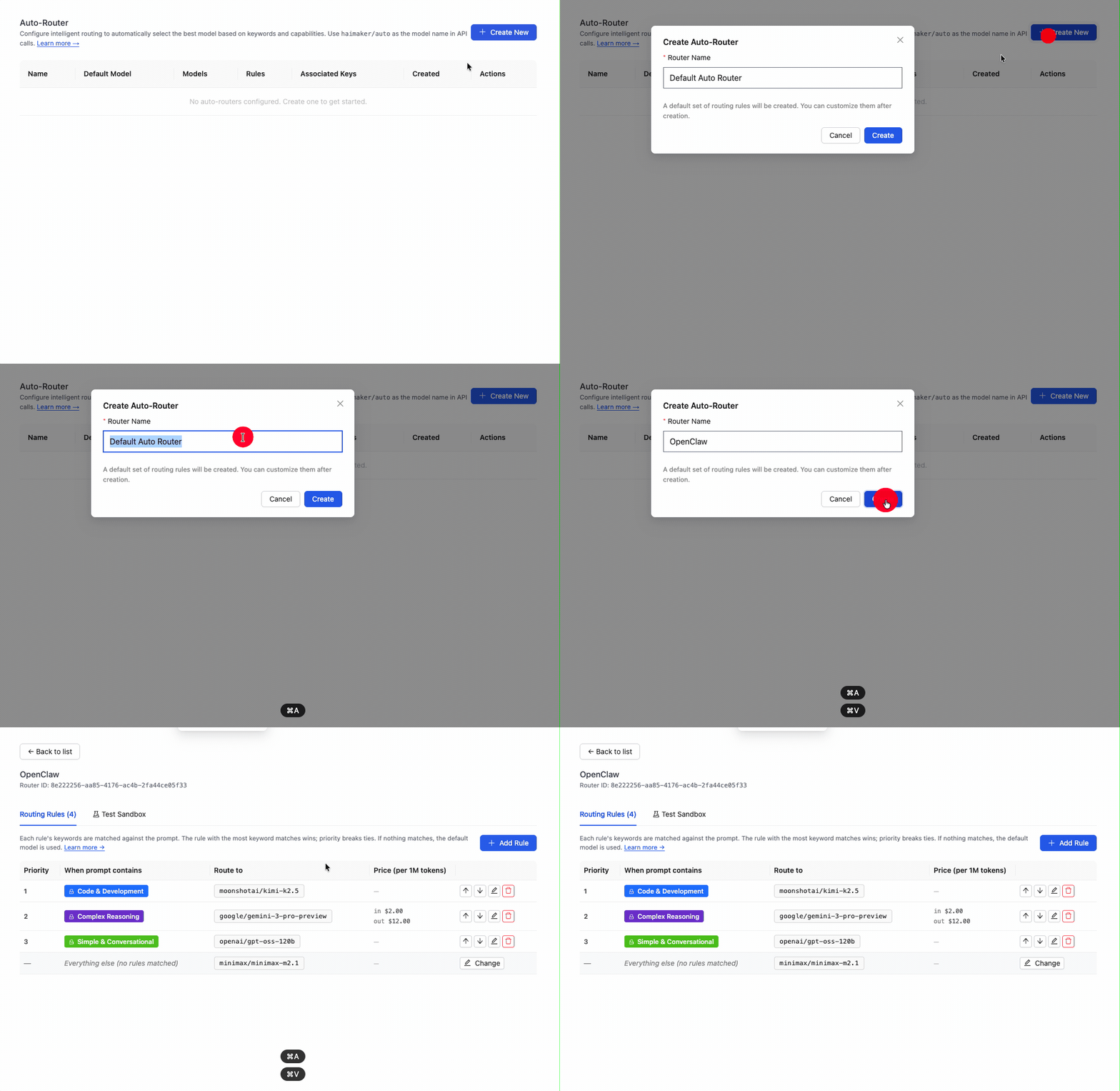
Start with the default rules — they're based on real traffic patterns and work well for most agents. You can always tune them later.
### 3. Create an API key and attach your auto-router
Go to **API Keys**, create a new key, and select your auto-router from the dropdown. Any request made with this key will use your routing rules.
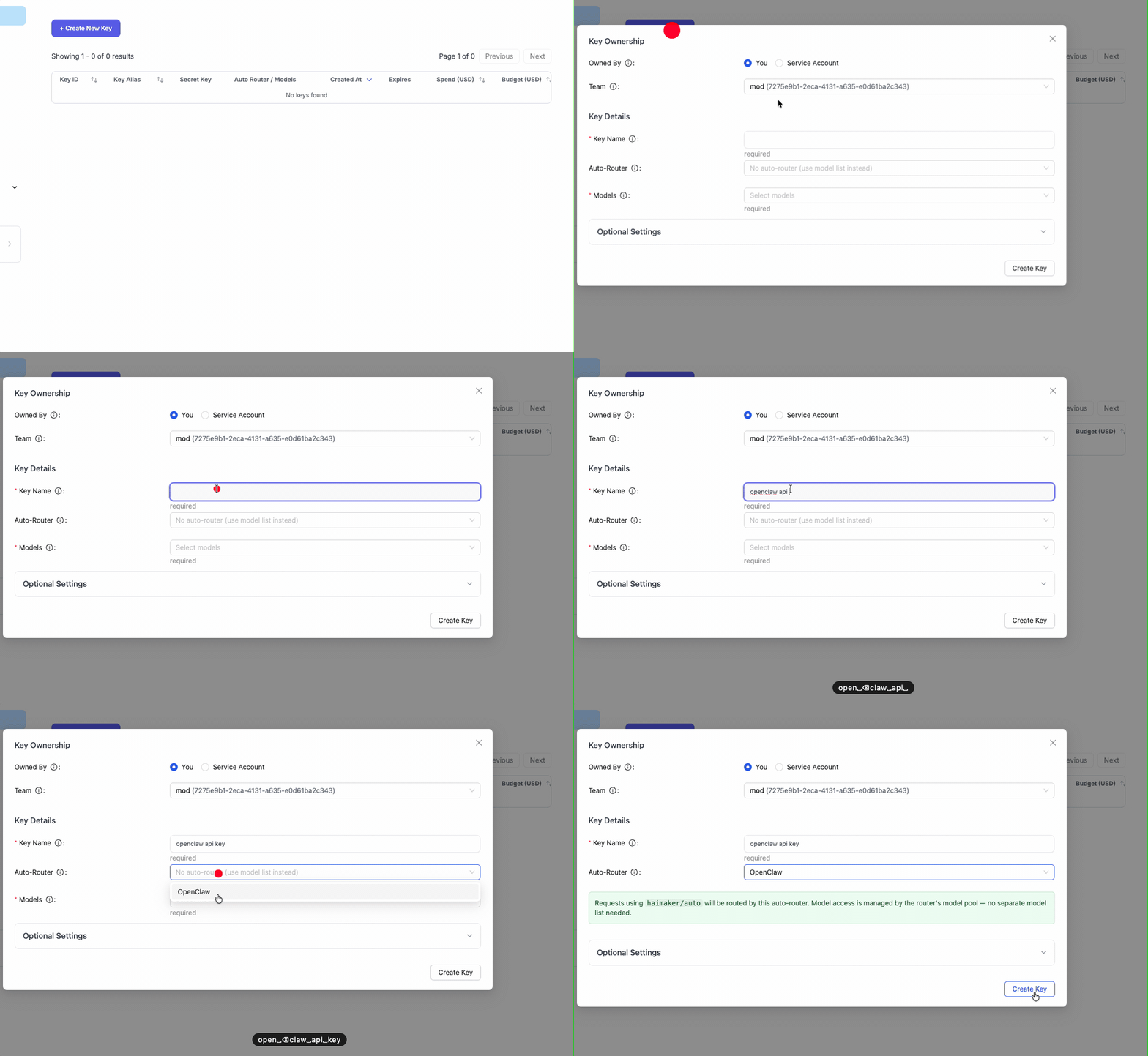
Copy the API key — you'll need it for the next step.
### 4. Point OpenClaw at your router
With your auto-router API key in hand, point OpenClaw at it in a single command:
```bash
export HAIMAKER_API_KEY=your-auto-router-key
npx -y @haimaker/connect --openclaw
```
[`@haimaker/connect`](/connect) defaults to the `haimaker/auto` model — exactly the router you just created — and writes both the provider definition and the `agents.defaults.models` allowlist entry, so there's no "model not allowed" step to miss. Run `/model auto` and you're routing. Reverse it any time with `npx @haimaker/connect --uninstall --openclaw`.
SIGN UP FOR HAIMAKER
---
## Prefer not to use the CLI?
You can also have OpenClaw set itself up from a chat prompt. Once you have your Haimaker API key, paste this prompt into your OpenClaw chat:
```
Add Haimaker as a custom provider to my OpenClaw config. Use these details:
- Provider name: haimaker
- Base URL: https://api.haimaker.ai/v1
- API key: [PASTE YOUR HAIMAKER API KEY HERE]
- API type: openai-completions
Add the auto-router model:
- haimaker/auto (reasoning: false, context: 128000, max tokens: 32000)
Create an alias "auto" for easy switching. Apply the config when done.
```
That's it. OpenClaw will update your config, add the provider, and restart automatically. Verify it worked by running `/models` — you should see `haimaker/auto` in the list.
Switch to it with `/model auto` and you're routing through Haimaker.
---
## Or configure it manually
If you prefer to set it up yourself, here's how to add Haimaker's auto-router to your OpenClaw config.
### Find your config
Your OpenClaw config lives at:
```bash
~/.openclaw/openclaw.json
```
(If you're on an older version, it might be at `~/.clawdbot/clawdbot.json` — the paths are symlinked.)
### Add the provider
Add this to your `models.providers` section:
```json
{
"models": {
"mode": "merge",
"providers": {
"haimaker": {
"baseUrl": "https://api.haimaker.ai/v1",
"apiKey": "YOUR-HAIMAKER-API-KEY",
"api": "openai-completions",
"models": [
{
"id": "haimaker/auto",
"name": "haimaker/auto",
"reasoning": false,
"input": ["text"],
"cost": {
"input": 0.10,
"output": 0.40,
"cacheRead": 0,
"cacheWrite": 0
},
"contextWindow": 128000,
"maxTokens": 32000
}
]
}
}
}
}
```
The cost values here are placeholders — the actual cost depends on which model the router selects for each request. Haimaker's dashboard shows your blended costs in real time.
### Add to the allowlist
This step is required. Add the model to your `agents.defaults.models` section:
```json
{
"agents": {
"defaults": {
"models": {
"haimaker/haimaker/auto": {
"alias": "auto"
}
}
}
}
}
```
The fully-qualified name is `haimaker/haimaker/auto` — provider name plus model ID.
### Apply the config
Run:
```bash
openclaw gateway config.apply --file ~/.openclaw/openclaw.json
```
The gateway restarts automatically.
### Test it
1. Run `/models` to confirm `haimaker/auto` appears
2. Switch to it: `/model auto`
3. Send a test message
4. Check the Haimaker dashboard to see which model handled the request
---
## How the savings work
Here's a real example from an OpenClaw agent running 24/7:
| Request type | % of traffic | Model | Cost per 1M tokens |
|-------------|--------------|-------|-------------------|
| Status checks, simple queries | 55% | MiniMax M2.5 | $0.30 / $1.20 |
| Routine tasks, summaries | 25% | GLM-5 | $0.80 / $2.56 |
| Complex reasoning, coding | 20% | GPT-OSS-120B | $0.60 / $2.40 |
**Blended cost: ~$0.38 / $1.46 per 1M tokens**
Compare that to sending everything to GPT-4o at $2.50 / $10.00 per 1M tokens. For an agent processing 10M tokens per day, that's the difference between ~$18/day and ~$125/day.
The router makes these decisions automatically based on:
- **Capability filtering** — vision requests only go to vision models, tool calls to tool-capable models
- **Keyword matching** — "debug this code" routes differently than "what's the weather"
- **Your custom rules** — add domain-specific keywords for your use case
Every routed request is tagged in Haimaker's logs. You can see exactly why each request went where it did.
---
## Tuning your router
The default rules handle most agent workloads well, but you can optimize further:
- Add keywords specific to your agent's tasks
- Set capability-based rules (e.g., "all vision requests to GPT-4o")
- Adjust the default fallback model
Changes take effect immediately — no need to restart OpenClaw or update your config.
---
## Troubleshooting
**"model not allowed: haimaker/haimaker/auto"**
You missed the allowlist step. Add the entry to `agents.defaults.models` with the fully-qualified name.
**Requests aren't routing to cheaper models**
Check your rules in the Haimaker dashboard. The sandbox lets you test prompts and see where they'd route before making real requests.
**Latency seems higher**
First request to a new model incurs a cold-start. Subsequent requests to the same model are fast. The router also has negligible overhead — it's just pattern matching, not an LLM call.
---
## Related guides
- [Integrating custom LLM providers with OpenClaw](/blog/openclaw-custom-provider-setup) — Detailed walkthrough of the manual config process
- [Auto-routing: Cut AI inference costs without writing custom logic](/blog/auto-routing-cut-inference-costs) — How the routing system works under the hood
- [Best models for OpenClaw in 2026](/blog/best-models-for-openclaw) — Which models to include in your router
GET $10 FREE CREDITS